
Media manager
Where: Playlists → Media manager (/files)
The Media manager is your content library. It works like a file explorer: folders on the left, files on the right.
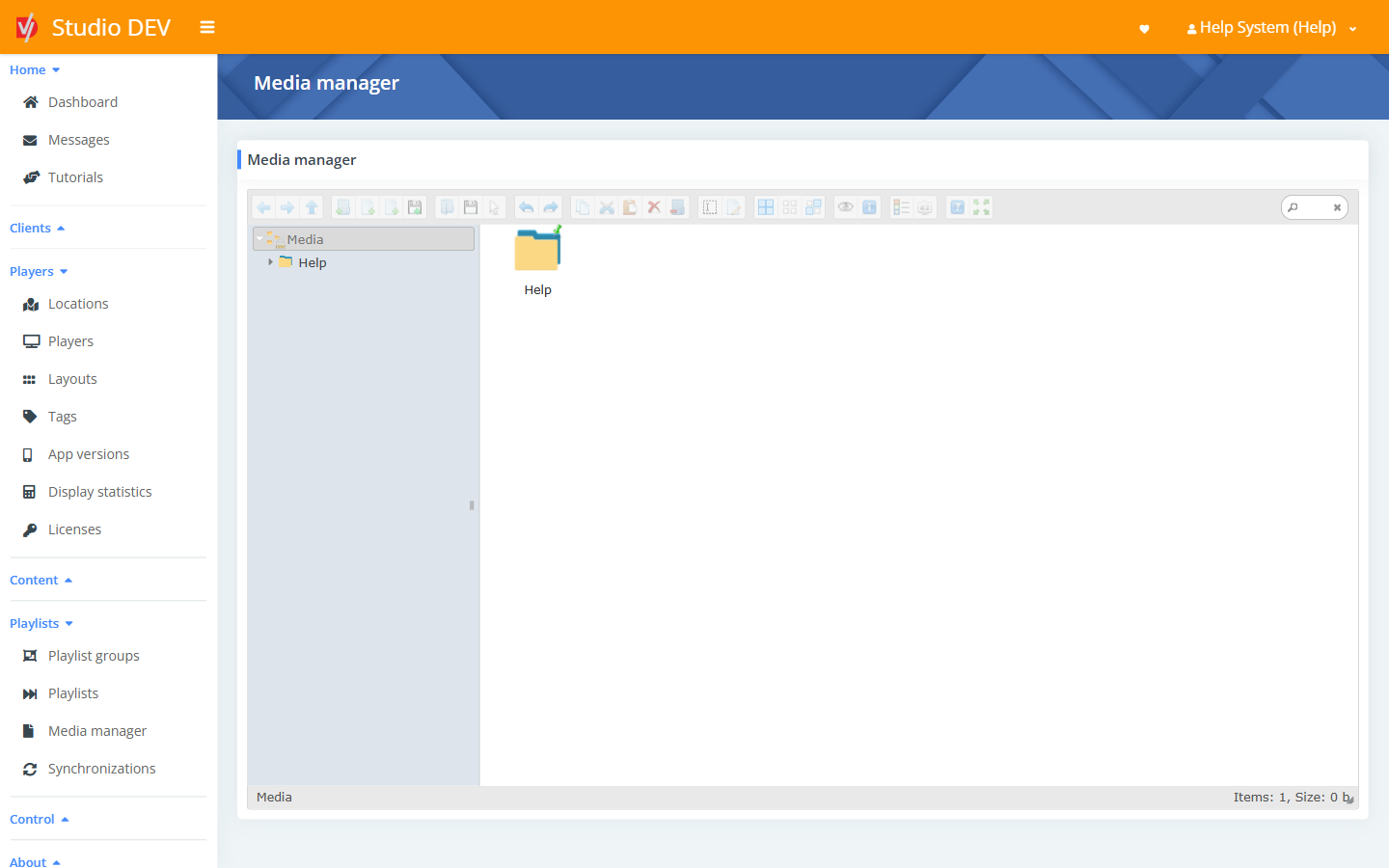
Folders
Section titled “Folders”The tree starts at Media, with a folder for each client or location you can access (for example Help). Create sub-folders to keep things tidy, for example 2026 / Spring campaign.
Upload files
Section titled “Upload files”- Drag files from your computer into a folder, or
- Click Upload files on the toolbar.
Supported content
Section titled “Supported content”| Kind | Examples |
|---|---|
| Images | JPG, PNG, GIF, WebP |
| Video | MP4 and other common formats |
| Audio | MP3 (use in an Audio only playlist) |
| Documents | PDF, Excel. PDFs play page by page, or scroll if Display PDF as scrollable is on in Player settings. |
| Web pages | .url links, created with New file |
Toolbar
Section titled “Toolbar”The toolbar is the same as the playlist manager toolbar: navigate, upload, create, rename, duplicate, delete, preview, get info, change the view and go full screen. Use the search box on the right to find files by name.
- Name files clearly. File names appear in Display statistics.
- Size images to the zone. A 1920 × 1080 image fits a full-screen FullHD landscape zone exactly. See Image scale type in Player settings for what happens when sizes don’t match.
- Tag files to show different versions on different screens. See Tags.
Permissions needed
Section titled “Permissions needed”Manage media.