
Display statistics (proof of play)
Where: Players → Display statistics (/playStatistics)
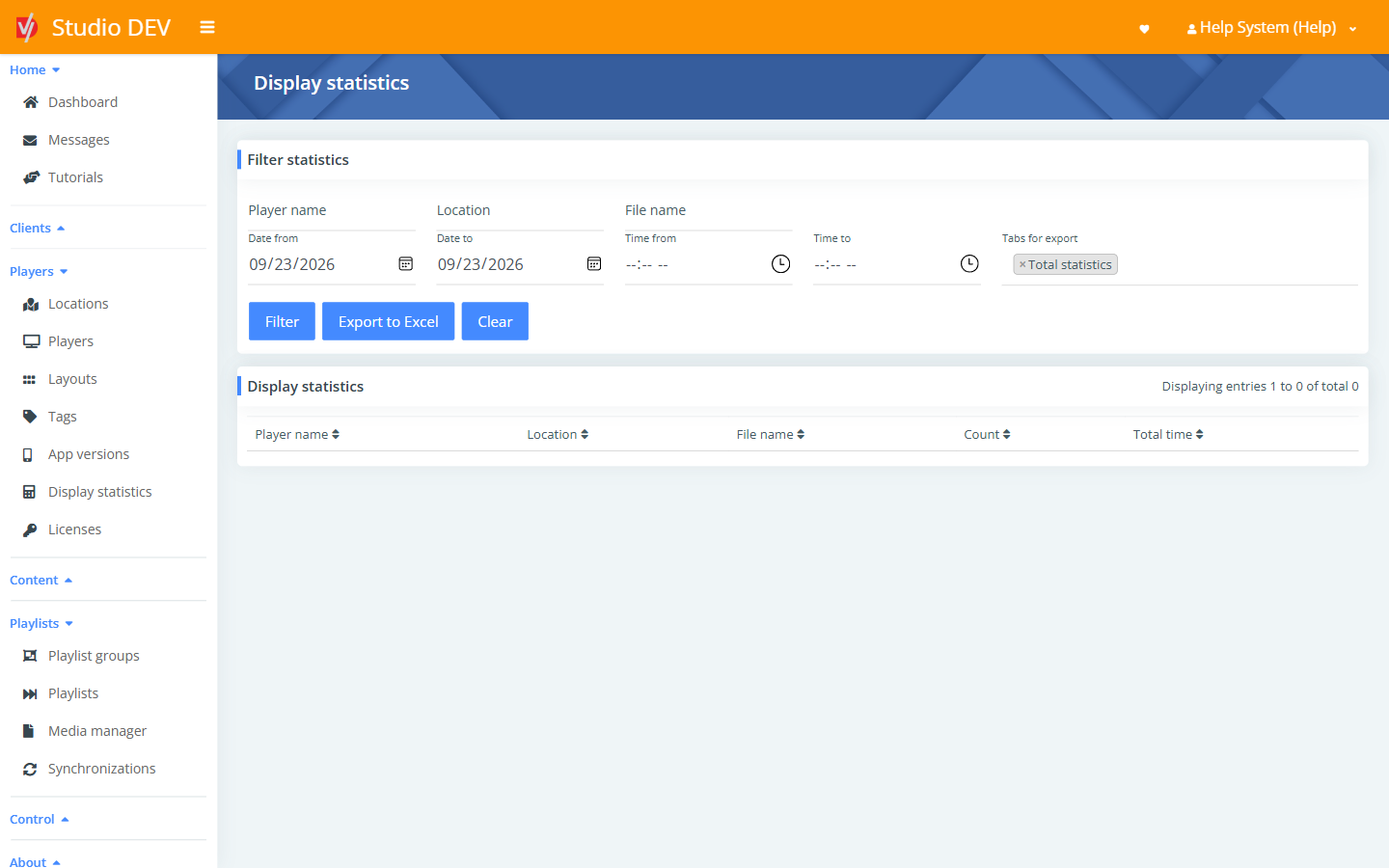
Display statistics (also called proof of play) show how many times, and for how long, each file played on each player. Use them to prove to advertisers that their content ran.
Turn on statistics
Section titled “Turn on statistics”Players only report statistics when Report playback statistics is on. Turn it on in Player settings, either on a location (for every player there) or on a single player. Players then report every two minutes.
Filter statistics
Section titled “Filter statistics”| Filter | Use it to |
|---|---|
| Player name | Match a player. |
| Location | Match a location. |
| File name | Match a media file. |
| Date from / Date to | Limit to a date range. |
| Time from / Time to | Limit to a time of day, for example opening hours only. |
Click Filter to show results.
| Column | Meaning |
|---|---|
| Player name | The player that showed the file. |
| Location | Where that player is. |
| File name | The media file. |
| Count | How many times it played. |
| Total time | How long it was on screen in total. |
Export
Section titled “Export”Choose which sheets (tabs) to include under Tabs for export, then click Export to Excel:
- List: every row, as shown on screen.
- Total statistics: totals per file.
- Hourly statistics: plays per hour.
Permissions needed
Section titled “Permissions needed”View display statistics.