
Locations
Where: Players → Locations (/locations)
Locations describe where your screens are. They form a tree, for example Company → Region → Store → Floor. A location controls:
- the time zone used for schedules on its players,
- player settings inherited by every player below it,
- include/exclude tags that filter which media plays there,
- opening hours, and
- which users can see it (see User permissions).
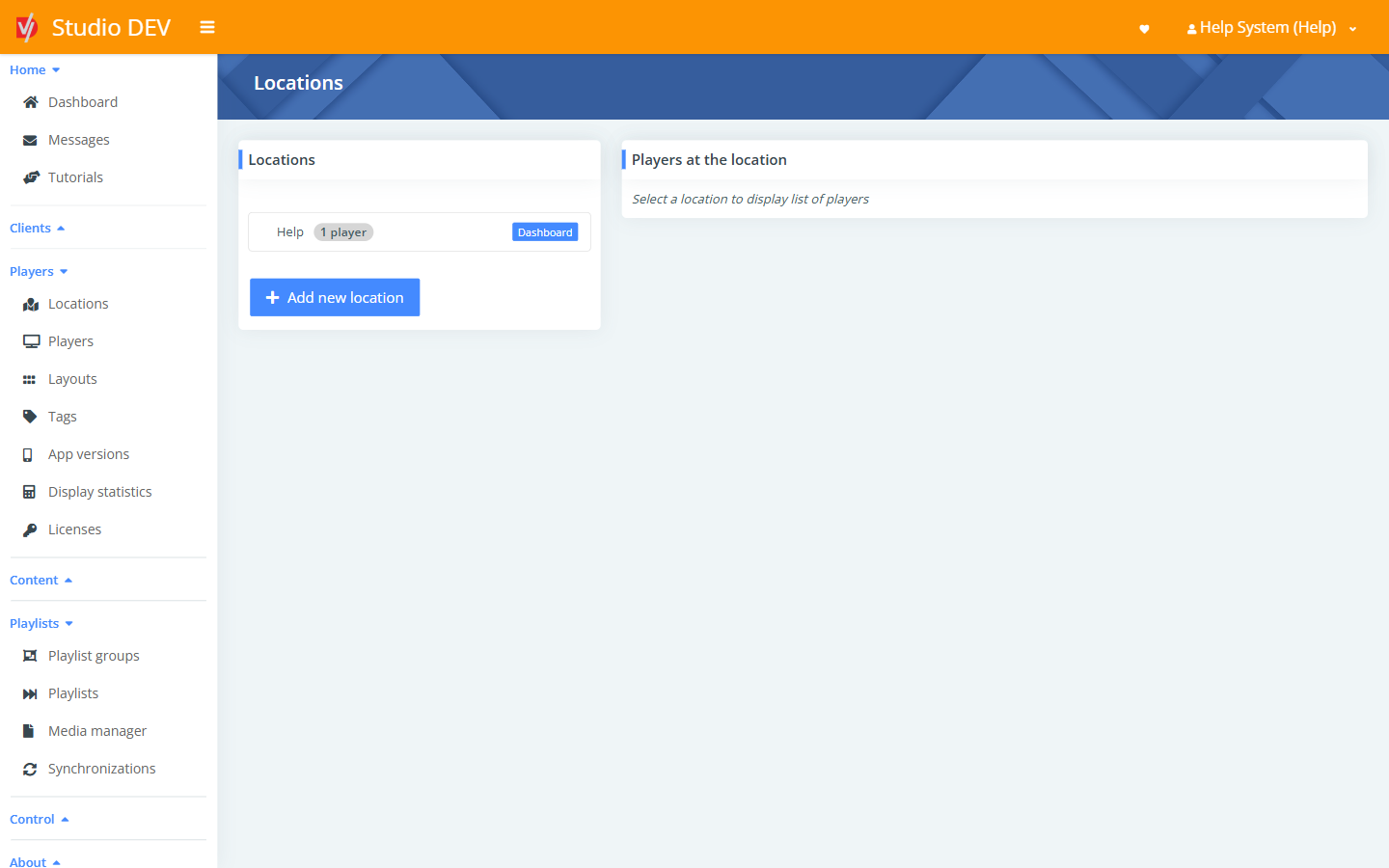
The locations tree
Section titled “The locations tree”The left panel shows your location tree. Click a location to list its players in Players at the location. The Dashboard button on each location opens its location dashboard.
Add a new location
Section titled “Add a new location”Click Add new location, or on an existing location use Actions → Add new child location.
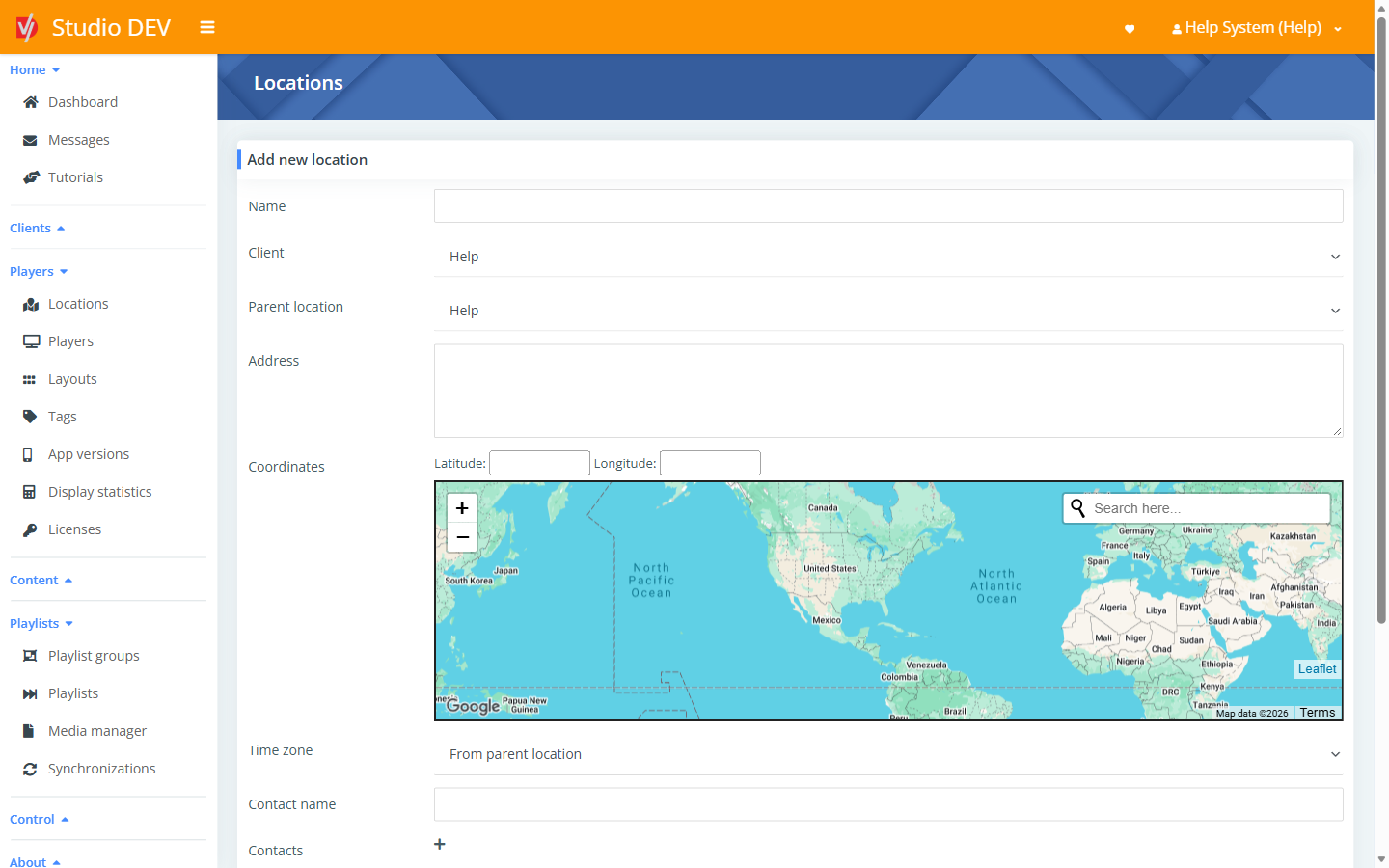
Location fields
Section titled “Location fields”| Field | Required | Description |
|---|---|---|
| Name | Yes | For example Main Street Store. |
| Client | The organization the location belongs to. | |
| Parent location | Yes | Where it sits in the tree. |
| Address | Street address, for your reference. | |
| Coordinates | Latitude and Longitude. Needed to show players on the dashboard map. | |
| Time zone | Defaults to From parent location. Pick a specific zone (for example America/New York) if this location is in a different one. All schedules for players here use this time zone. | |
| Contact name | The on-site contact. | |
| Contact fields | Add as many contact rows as you need. Each has a type (Phone, Email, WhatsApp or Other) and a value. | |
| Include tags | Players here only play media carrying these tags. | |
| Exclude tags | Players here skip media carrying these tags. | |
| Note | Free-text notes. |
Location details page
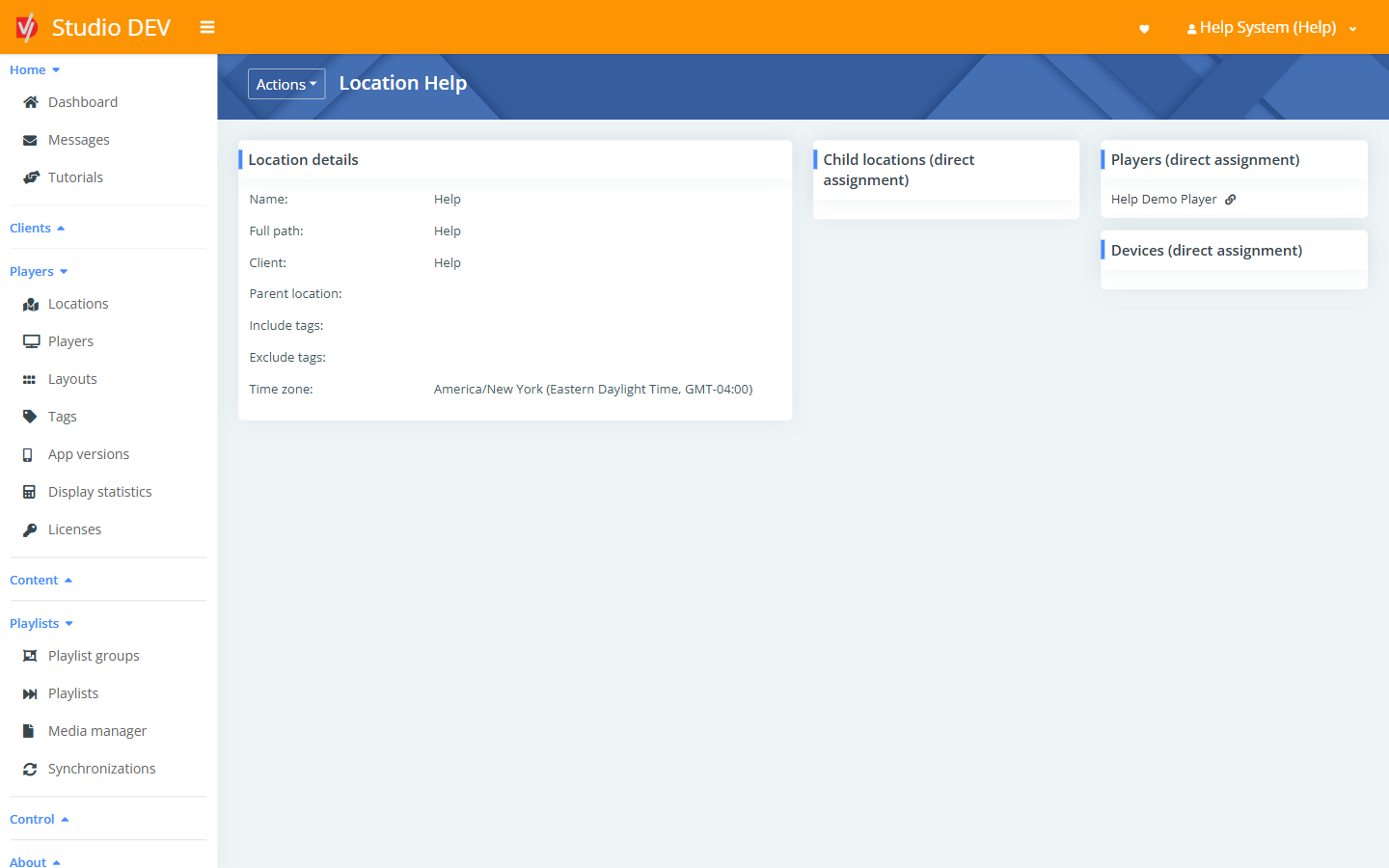
Section titled “Location details page”Where: /locations/{id}/info
Shows Name, Full path, Client, Parent location, Include/Exclude tags and Time zone, plus the child locations, players and devices assigned directly to this location.
Actions menu
Section titled “Actions menu”| Action | What it does |
|---|---|
| Location dashboard | Opens the location dashboard. |
| Location details | Opens the details page above. |
| Edit location | Opens the location form. |
| Edit dashboard | Customizes the location dashboard. |
| Add new child location | Creates a location inside this one. |
| Player settings | Sets player settings for every player at or below this location. |
| Opening hours | Views and edits opening hours. |
| Delete location | Deletes the location after confirmation. |
Location dashboard
Section titled “Location dashboard”Where: /locations/{id}
A control panel for everyone working at one site. By default it shows each player’s last contact and hardware status. It can also offer one-click buttons to trigger event playlists, change volume and more.
Edit the location dashboard
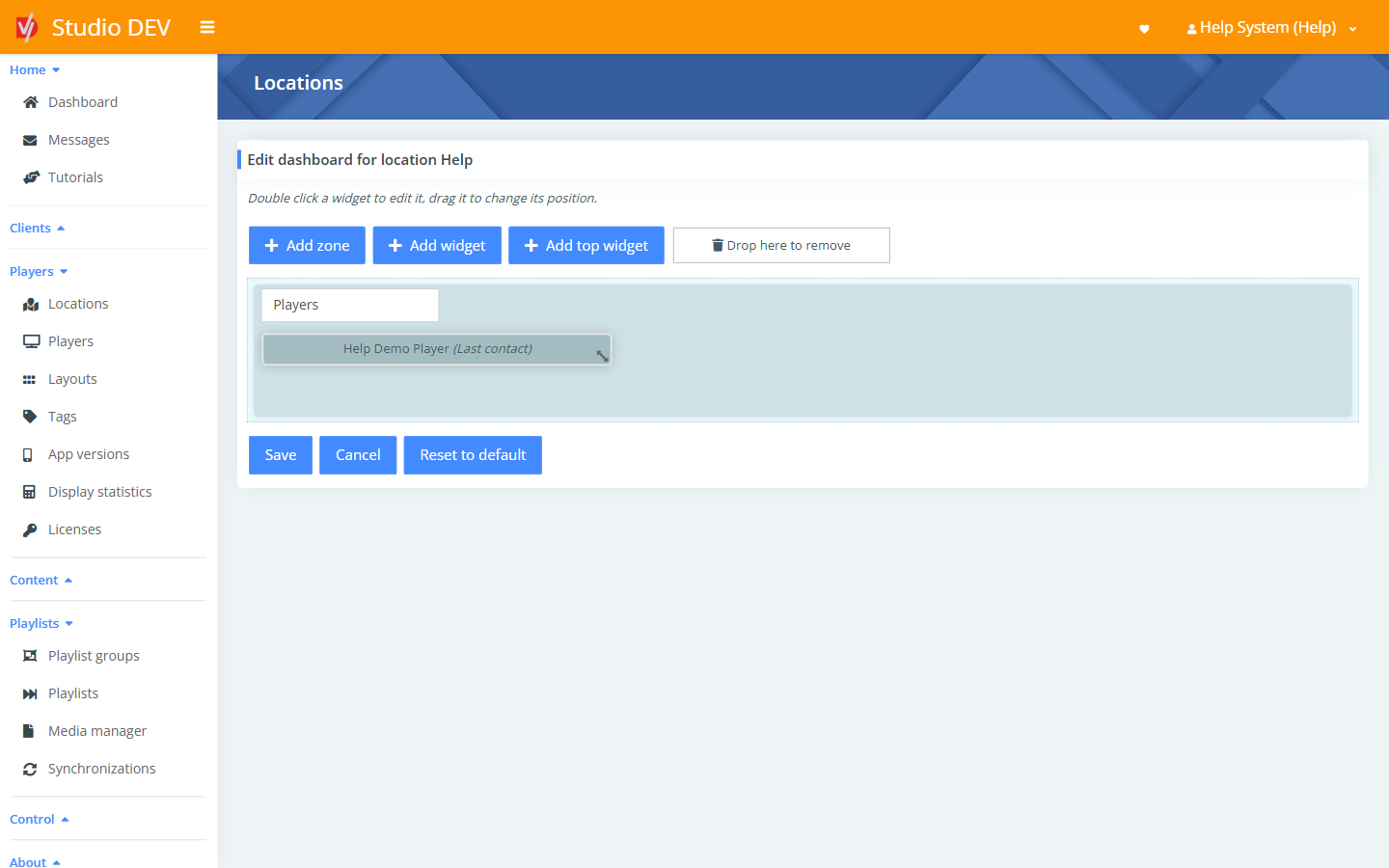
Section titled “Edit the location dashboard”Where: Actions → Edit dashboard (/locations/{id}/dashboard/edit)
Double-click a widget to edit it, and drag widgets to move them. Drag a widget onto Drop here to remove to delete it.
| Button | What it does |
|---|---|
| Add zone | Adds an area to group widgets in. |
| Add widget | Adds a widget to a zone. |
| Add top widget | Adds a widget across the top of the dashboard. |
| Save / Cancel | Saves or discards your changes. |
| Reset to default | Replaces your design with the default dashboard. |
Widget types:
| Widget | What it shows or does |
|---|---|
| Last contact | Online/offline status and last contact time of a player. |
| Hardware status | Status reported by the player’s hardware driver. |
| Link | A button linking to any URL. |
| Event playlists | Buttons that start a player’s event playlists. |
| Sync playlists | Starts a content sync. |
| Number playlists | Starts playlists by their event number. |
| Clear event playlist on player | Stops an event playlist and returns to the schedule. |
| Event layouts | Buttons that switch the player to an event layout. |
| Clear event layout on player | Returns to the scheduled layout. |
| Play/pause/next | Media controls for a zone. Leave the zone field empty for the main zone. |
| Volume | A volume slider for the player. |
Opening hours
Section titled “Opening hours”Where: Actions → Opening hours (/locations/{id}/openingHours)
Records when the location is open. The page lists each weekday, All other holidays and the location’s Full path, Time zone and whether it’s Currently open.
To change them, click Actions → Edit opening hours, then add rows with a Day, Time from and Time to, and click Save.
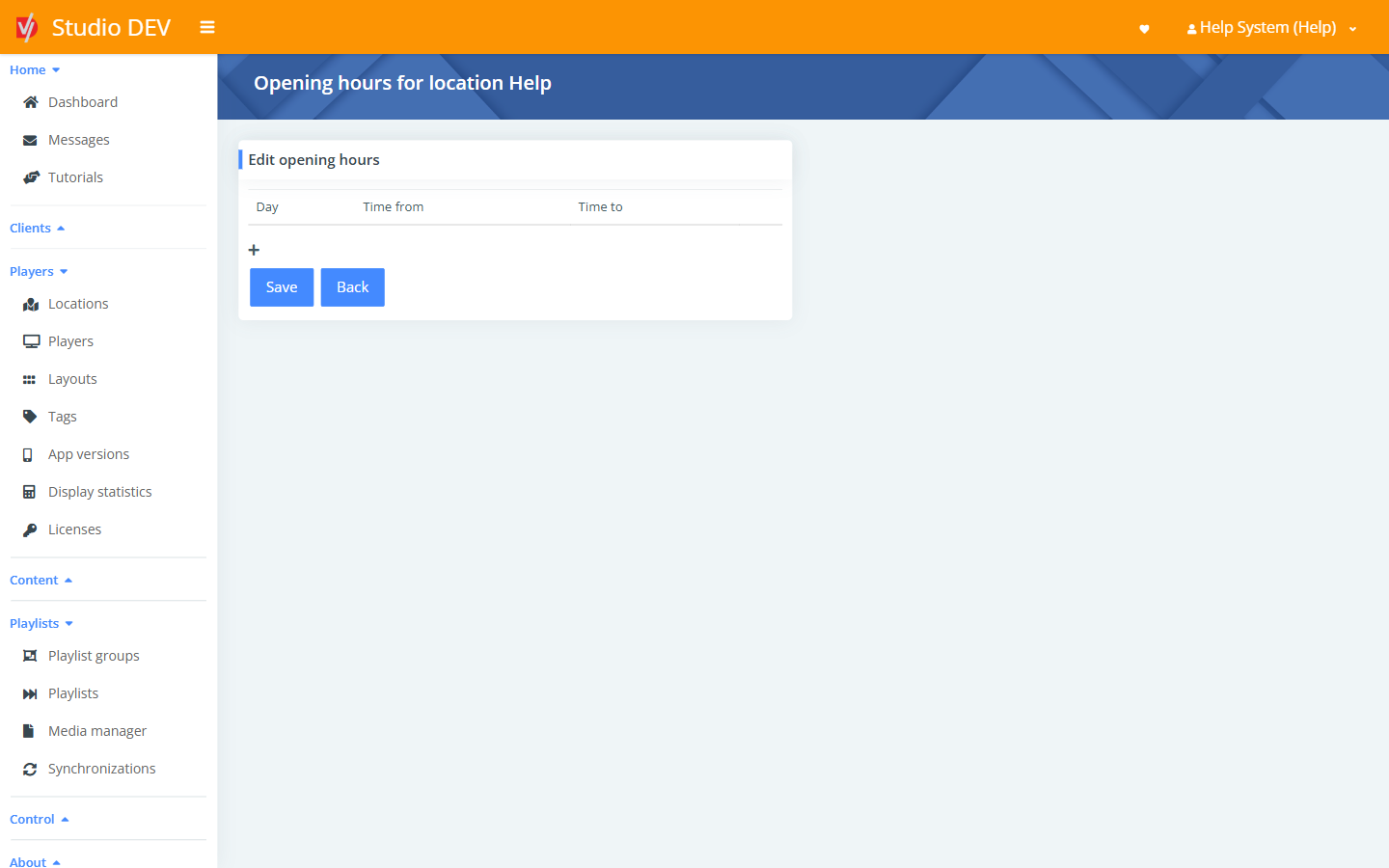
Day can be a weekday (Monday to Sunday), All other holidays, or a specific public holiday: New Year’s Day, Martin Luther King Jr. Day, Presidents Day, Memorial Day, Juneteenth, Independence Day, Labour Day, Veterans Day, Thanksgiving Day or Christmas.
A day with no rows is shown as Closed.
Player settings
Section titled “Player settings”Where: Actions → Player settings (/locations/{id}/playerSettings)
Settings you choose here apply to every player at this location and its child locations, unless a child location or an individual player overrides them. Leave a setting empty to inherit it from higher up.
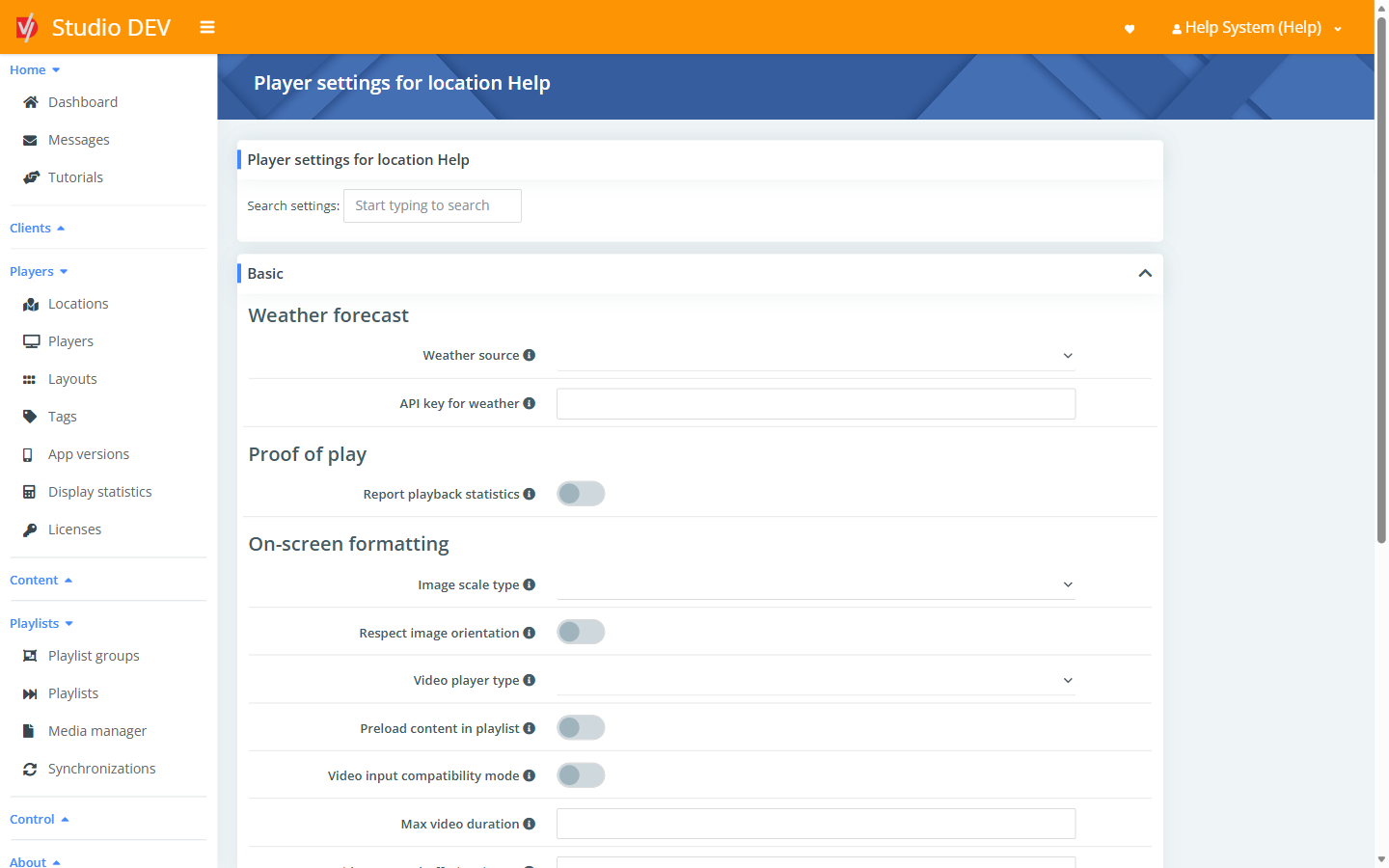
Use Search settings to find a setting by name. Every setting is described in the Player settings reference.
Permissions needed
Section titled “Permissions needed”- View locations to see locations.
- Manage locations to add, edit and delete them.
- Add location notes to edit the note field only.
- Manage player settings to change player settings.
- Manage dashboards to edit location dashboards.