
Users
Where: Clients → Users (/users)
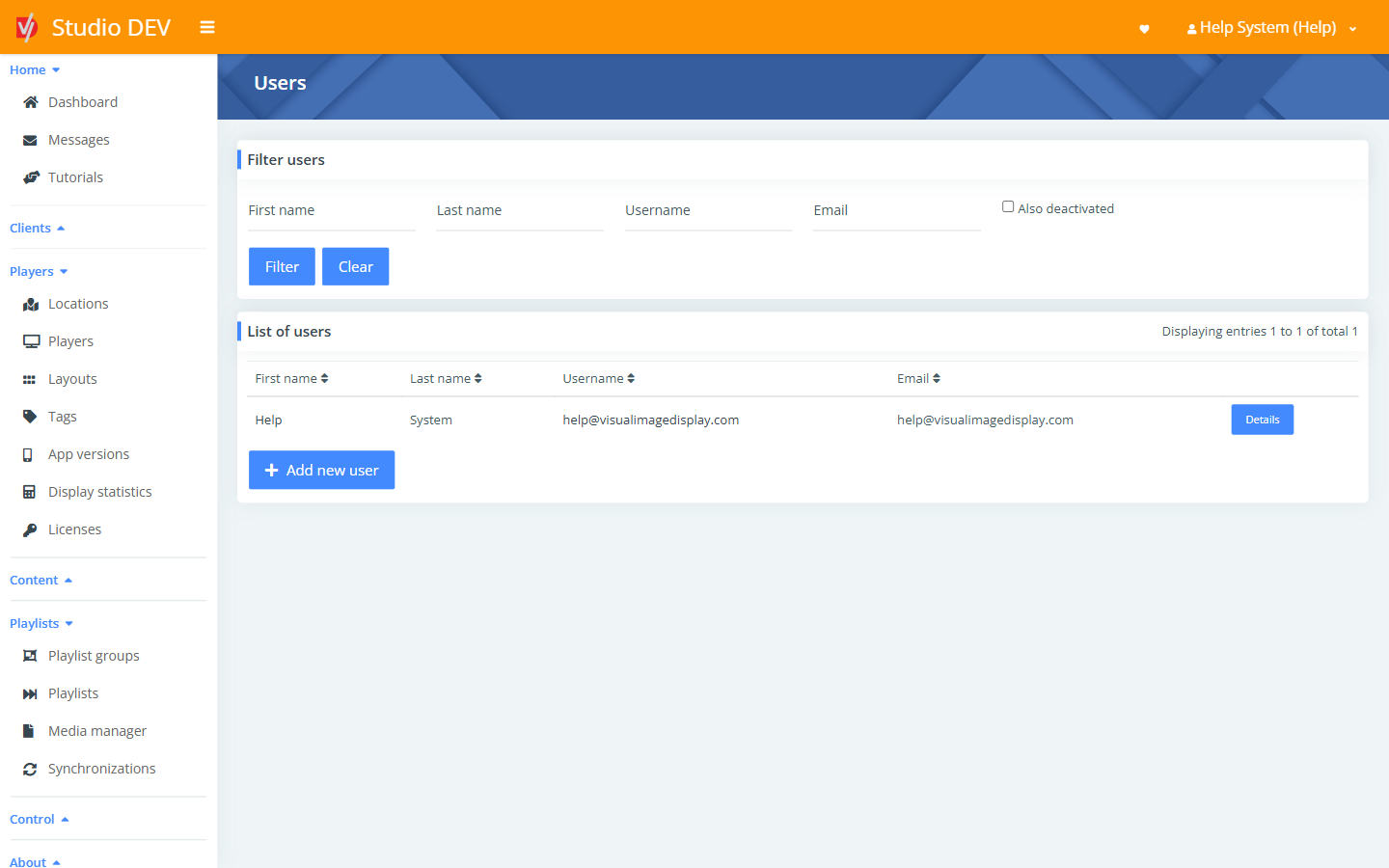
The Users page lists everyone who can sign in to your client. Adding a user creates their account. To decide what they can do, give them a user permission.
Find a user
Section titled “Find a user”| Filter | Use it to |
|---|---|
| First name / Last name | Match part of the person’s name. |
| Username | Match the sign-in name. |
| Match the email address. | |
| Also deactivated | Include deactivated accounts, which are hidden by default. |
The list shows First name, Last name, Username and Email. Click Details to open a user.
Add a new user
Section titled “Add a new user”- Click Add new user.
- Fill in the form and click Save.
- Open the new user and click Add new user permission to give them access. Until you do, they can sign in but won’t see anything.
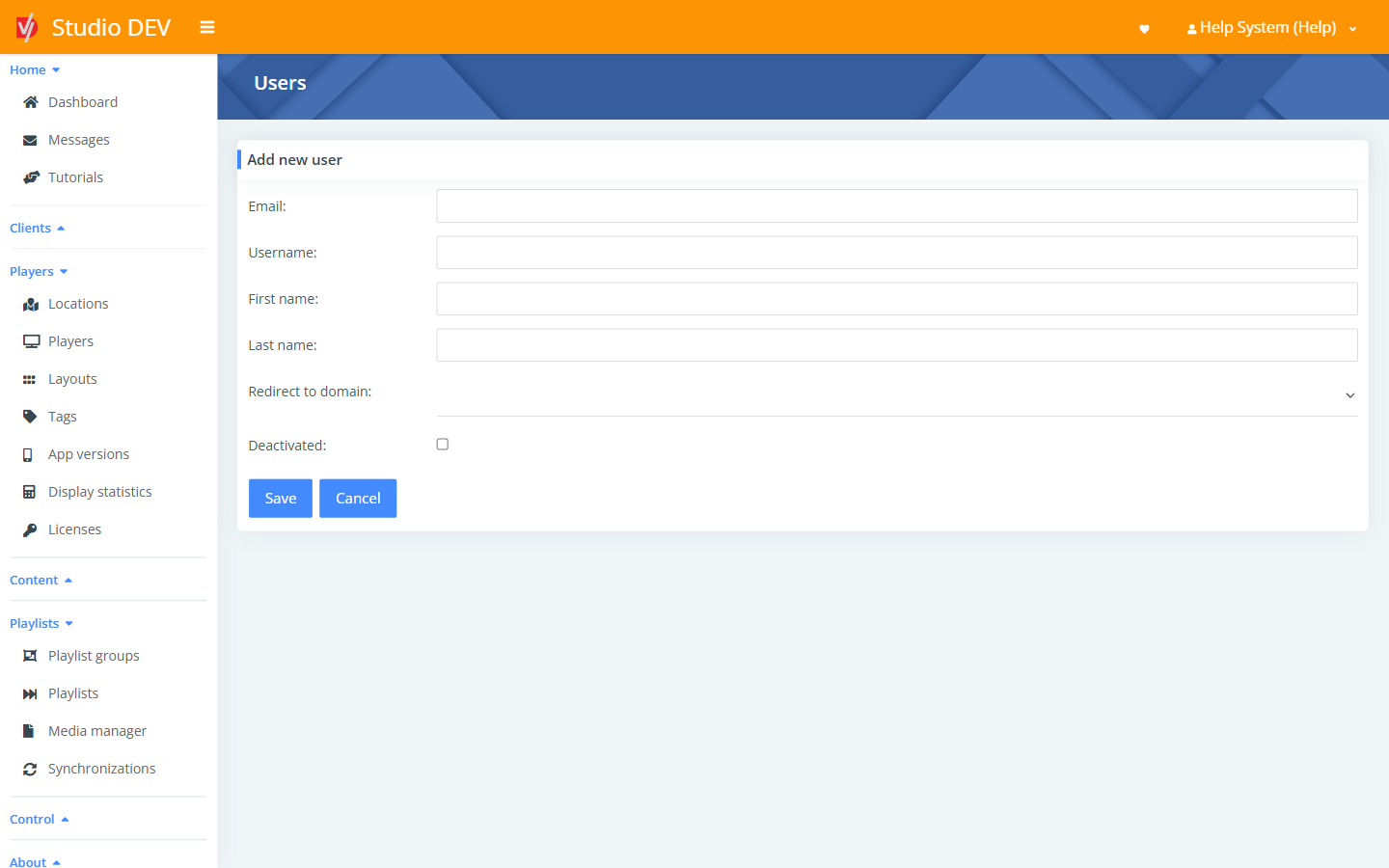
| Field | Required | Description |
|---|---|---|
| Yes | The person’s email. Password-reset and invitation emails go here. | |
| Username | Yes | The name they sign in with. Using their email address is common. |
| First name | Yes | |
| Last name | Yes | |
| Redirect to domain | No | Sends the user to a specific Studio domain after signing in, for example Studio (studio.digitalvi.app). Leave blank for the default. |
| Deactivated | No | Tick to block sign-in without deleting the account. |
User details page
Section titled “User details page”Where: /users/{id}
User details panel
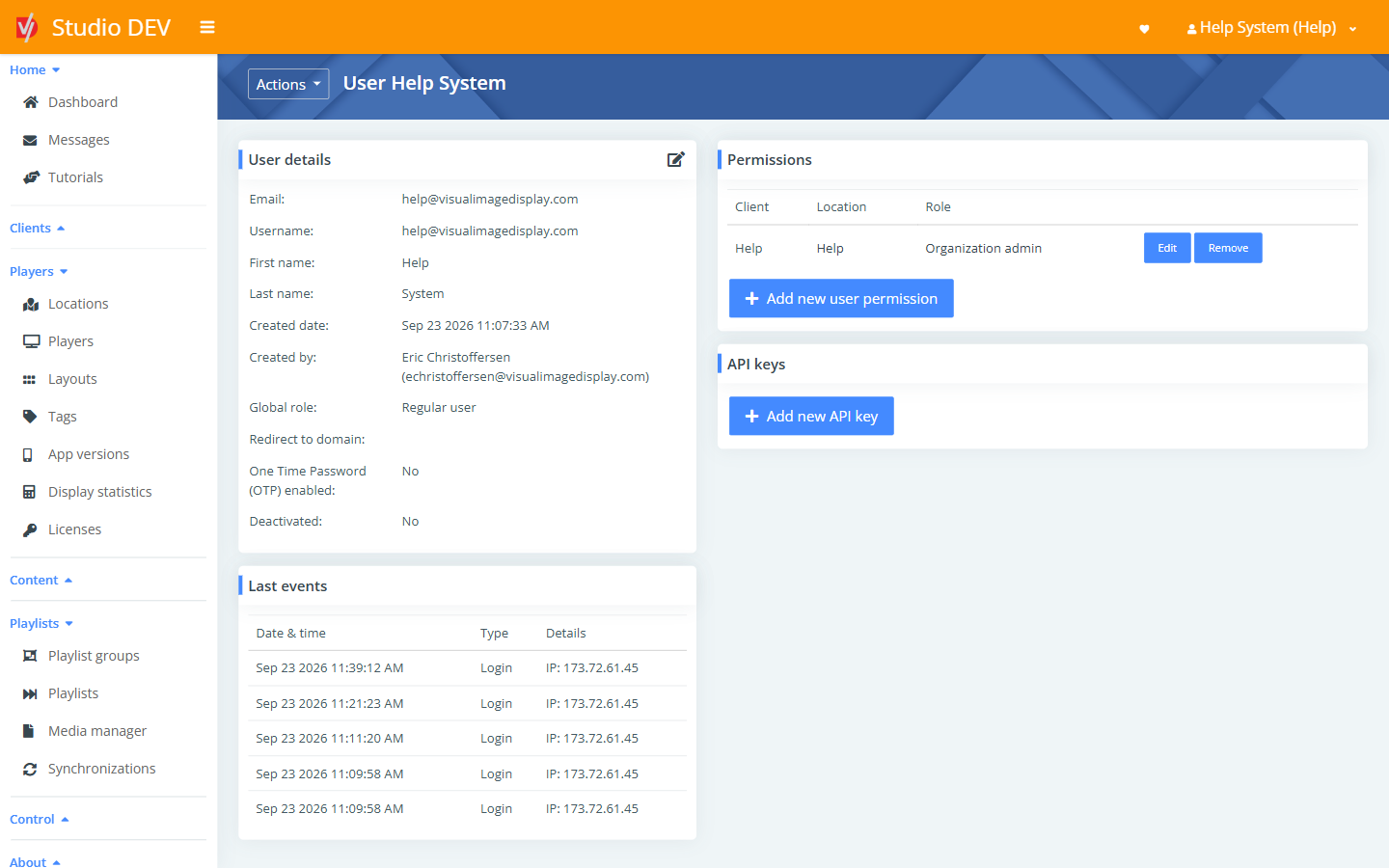
Section titled “User details panel”Shows Email, Username, First name, Last name, Created date, Created by, Global role (for example Regular user), Redirect to domain, whether One Time Password (OTP) is enabled, and whether the account is Deactivated.
Last events
Section titled “Last events”A log of recent activity for this account, such as logins and password changes, with the Date & time, Type and Details (for example the IP address).
Permissions
Section titled “Permissions”Every permission this user has, as Client / Location / Role rows. Use Edit to change one, or Add new user permission to grant access to another location.
API keys
Section titled “API keys”API keys let other systems use the Studio API as this user. Click Add new API key, enter a Description (for example POS integration), then click Save. The page links to the API documentation.
Actions menu
Section titled “Actions menu”| Action | What it does |
|---|---|
| Edit user | Opens the same form as Add new user. |
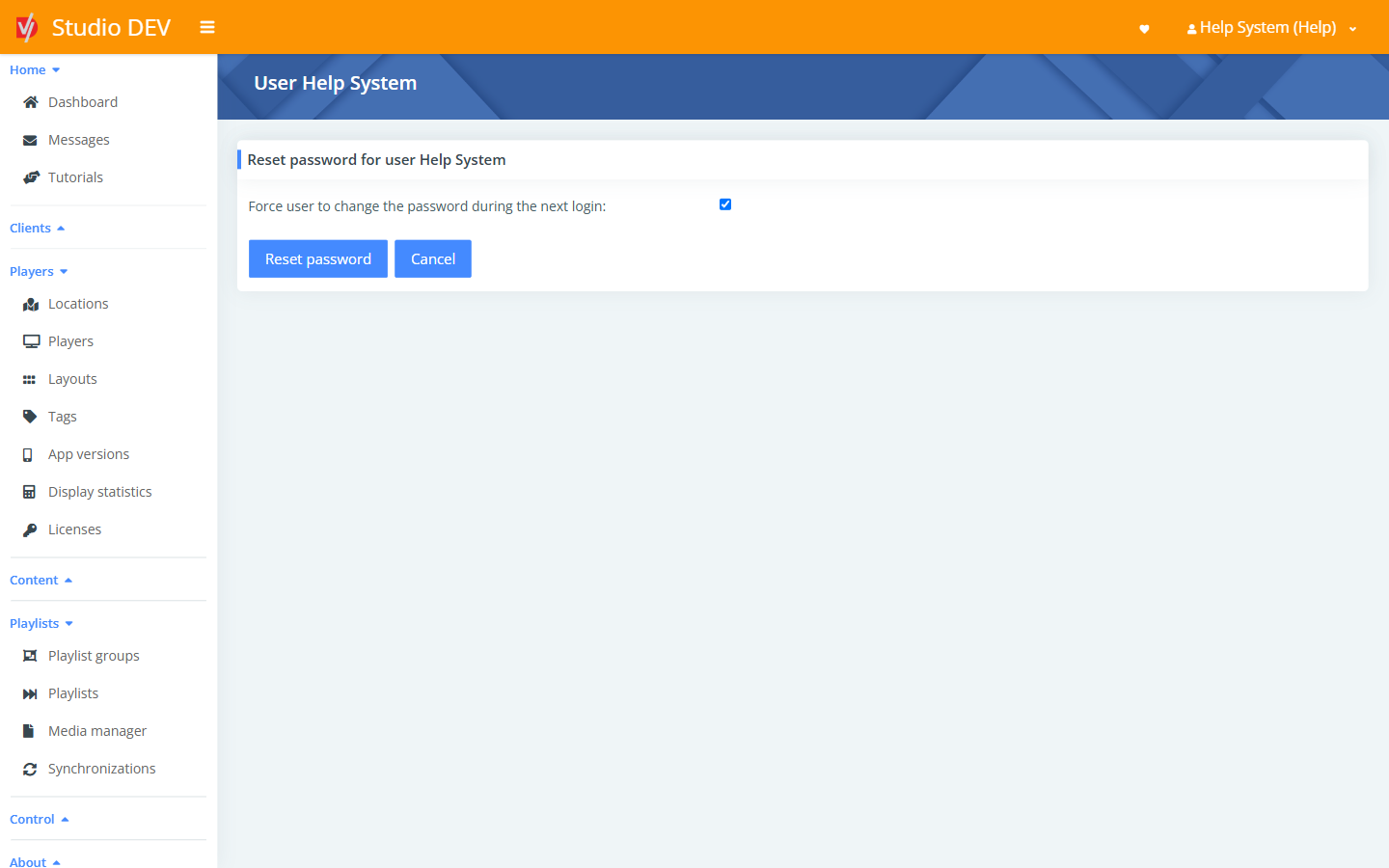
| Reset password | Sets a new password for the user yourself. Tick Force user to change the password during the next login so they must choose their own. |
| Send reset password email | Emails the user a link to set a new password. |
| Force reload permissions | Signs the user out everywhere so permission changes take effect immediately. |
Deactivate or remove a user
Section titled “Deactivate or remove a user”- To temporarily block someone, edit the user and tick Deactivated.
- To remove their access to one location, remove that row under Permissions.
Permissions needed
Section titled “Permissions needed”Manage users (in the Clients group). See Permissions reference.