
User permissions
Where: Clients → User permissions (/permissions)
A user permission connects three things: a user, a location (within a client) and a role. The user can then work with that location and everything below it in the location tree, limited to what the role allows. One user can have several permissions, for example Admin for one store and Player monitoring only for a whole region.
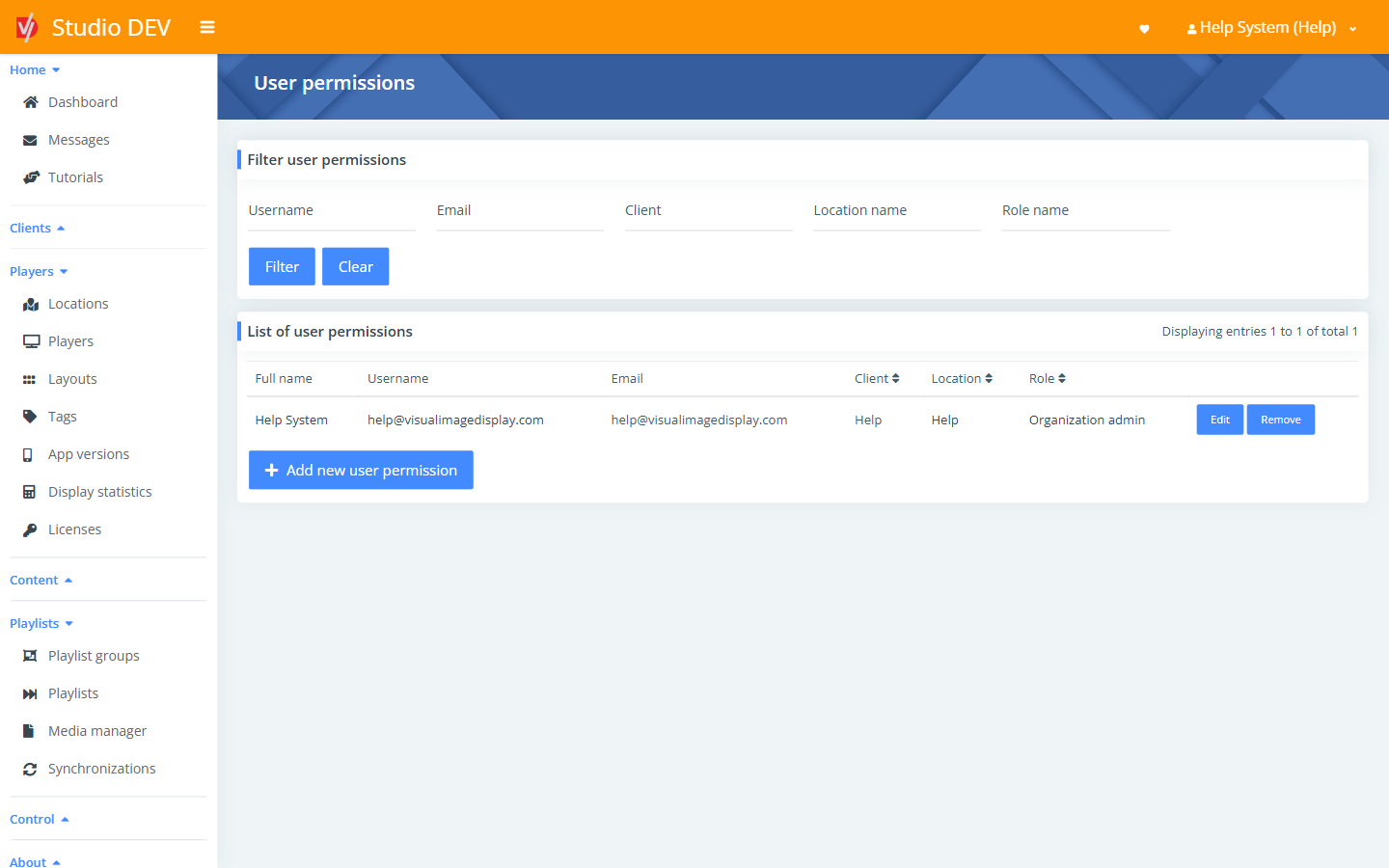
Find permissions
Section titled “Find permissions”Filter by Username, Email, Client, Location name or Role name. The list shows Full name, Username, Email, Client, Location and Role. Each name is a link to that user, location or role.
Add a user permission
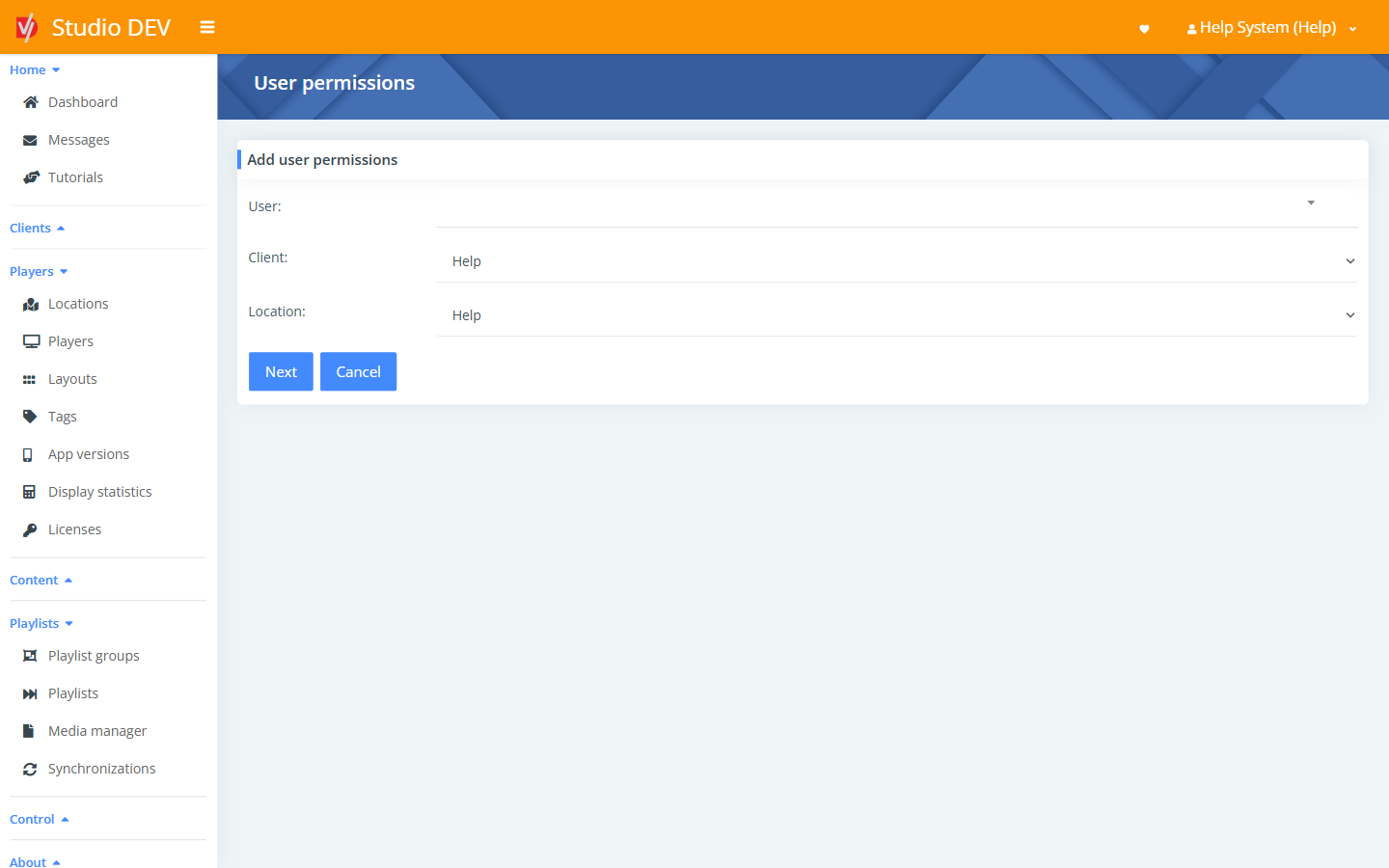
Section titled “Add a user permission”This is a two-step form.
Step 1: who and where
| Field | Description |
|---|---|
| User | Start typing a username, name or email and pick the person. |
| Client | The client (organization). |
| Location | The location the user gets access to. Access also covers all child locations. |
Click Next.
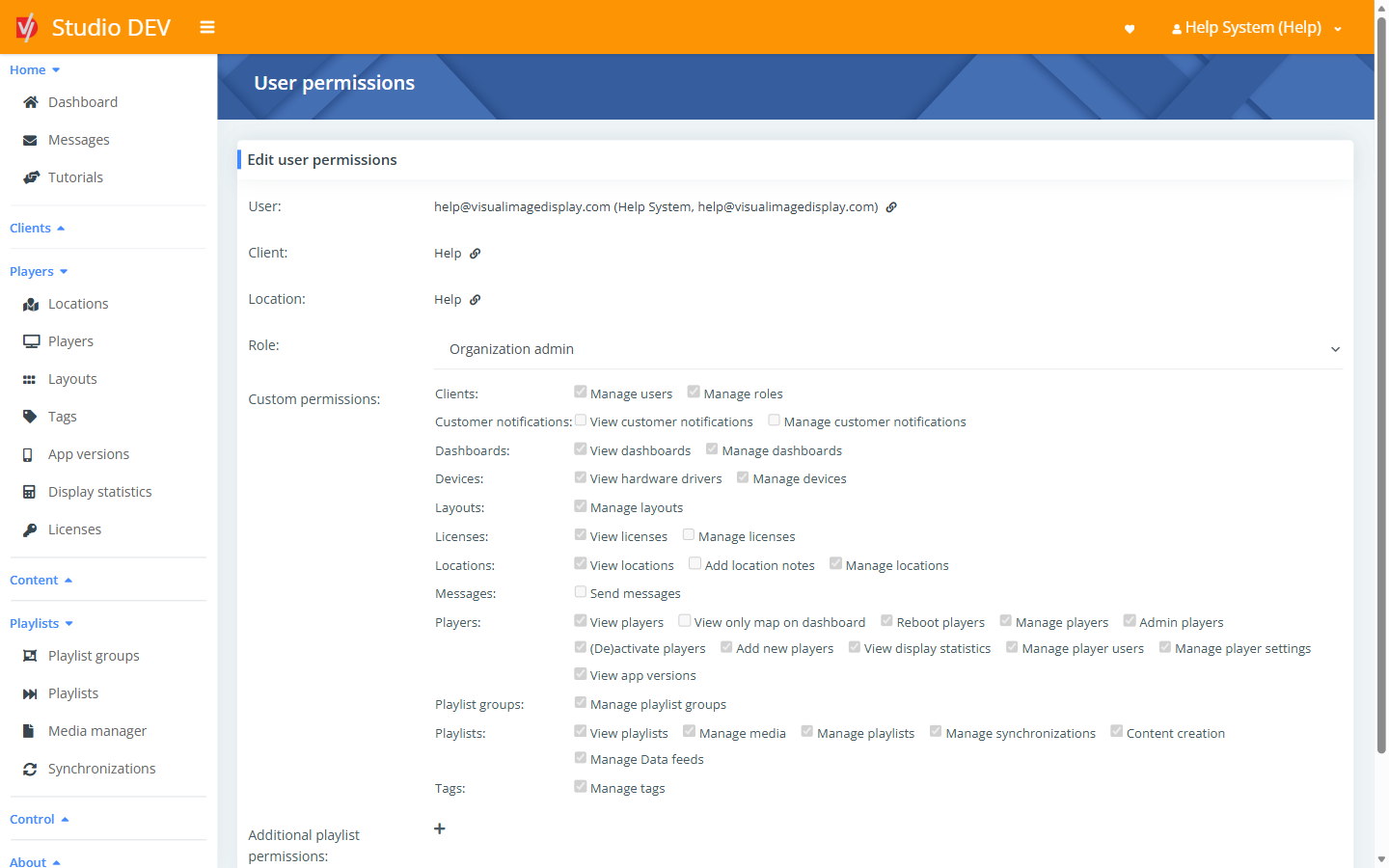
Step 2: what they can do
| Field | Description |
|---|---|
| Role | Pick a ready-made role, or Custom permissions to tick exactly what this user may do. |
| Custom permissions | Shown when Custom permissions is selected. See the Permissions reference for every checkbox. |
| Playlist restrictions | Optionally restrict the user to specific playlists (for example, a store manager who may only edit the Store promotions playlist). Add one row per playlist. |
Click Save.
Built-in roles
Section titled “Built-in roles”| Role | Typical use |
|---|---|
| Player monitoring only | Watch player status. Can’t change content. |
| Media management only | Upload and manage media and playlists. Can’t manage players. |
| Player and media management | Day-to-day operator: players plus content. |
| Standard user | General use without administrative rights. |
| Organization admin | Full control of the client, including users and roles. |
| Custom permissions | Choose individual permissions for this one assignment. |
You can create your own reusable roles under User roles.
Permissions needed
Section titled “Permissions needed”Manage users.