
Player details
Where: Players → Players → click a player (/players/{id})
The player page is where you check a screen’s health and control it remotely.
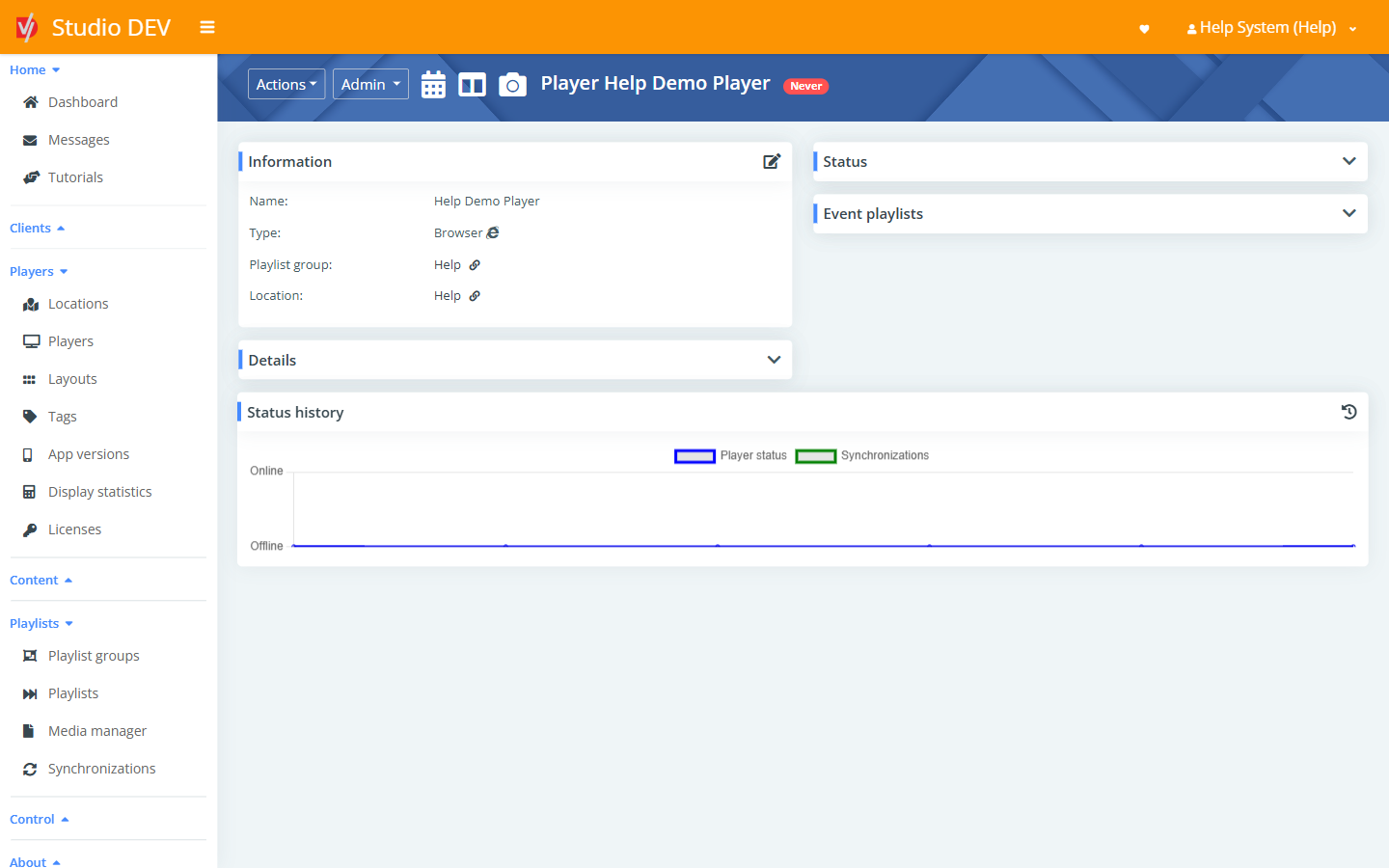
Page header
Section titled “Page header”Next to the player name:
- Actions ▾ and Admin ▾ menus (see below).
- Calendar icon: view and edit playlist schedules for this player.
- Layout icon: view and edit layout schedules.
- Camera icon: show a current screenshot.
- Status badge: for example Never (the player hasn’t connected yet), or Online / Offline.
Panels
Section titled “Panels”Information
Section titled “Information”Name, Type, Playlist group and Location. The links open the group and location. The pencil icon edits the player.
Details
Section titled “Details”Click to expand. Shows Client, Include tags, Exclude tags, Ignore untagged media, Browser link for player (Browser type), Concurrent sessions, Time zone, External IP address, Browser/app version and Note.
Status
Section titled “Status”| Item | Meaning |
|---|---|
| First contact | When the player first connected. |
| Last contact | When it last checked in. Never means it hasn’t connected yet. |
| Up since | When the app last started. |
| Currently scheduled playlist in the main zone | What should be playing right now. |
| Last displayed file | The last file the player reported showing. |
Event playlists
Section titled “Event playlists”Lists the playlists you can trigger on demand for this player, with their Type, Event ID and Action. Use Add event playlist to add one and Clear event playlist on player to return to the normal schedule. See Event playlists.
Status history
Section titled “Status history”A chart of Player status (online/offline) and Synchronizations over time. The history icon opens the full history, where you pick a date range and click Display.
Actions menu
Section titled “Actions menu”| Action | What it does |
|---|---|
| Edit player | Opens the player form. See Add a new player for the fields. |
| Playlist schedules | Schedules set directly on this player. See below. |
| Layout schedules | Layout schedules set directly on this player. |
| Display screenshot | Asks the player for a screenshot of what’s on screen now. |
| Display next file | Skips to the next item in the current playlist straight away. |
| Display statistics | Opens Display statistics filtered to this player. |
| Reload application | Restarts the DigitalVI app on the device and reloads all content and settings. |
Admin menu
Section titled “Admin menu”| Action | What it does |
|---|---|
| Change client | Moves the player to another client. This resets its playlist and layout assignments and its first-contact date. |
| Deactivate player | Stops the player and hides it from lists (see Also deactivated on the Players filter). |
| Player settings | Settings for this player only. They override settings inherited from its location. See the Player settings reference. |
| Player displays | Name each connected display and set its rotation. See below. |
| Download logs | Requests the player’s logs, a screenshot and its configuration as a ZIP file, for support. |
| Turn on single website mode | Makes the player show one website full-time instead of its playlists. Choose it again to turn it off. |
Playlist schedules
Section titled “Playlist schedules”Where: /players/{id}/playlistSchedules
The page has two parts:
- Playlist schedules for main zone: a calendar of what will play, including schedules inherited from the playlist group and layout. Use Layout / zone to switch zones and < Today > to move between days.
- Edit direct playlist schedules: schedules that apply only to this player and override inherited ones.
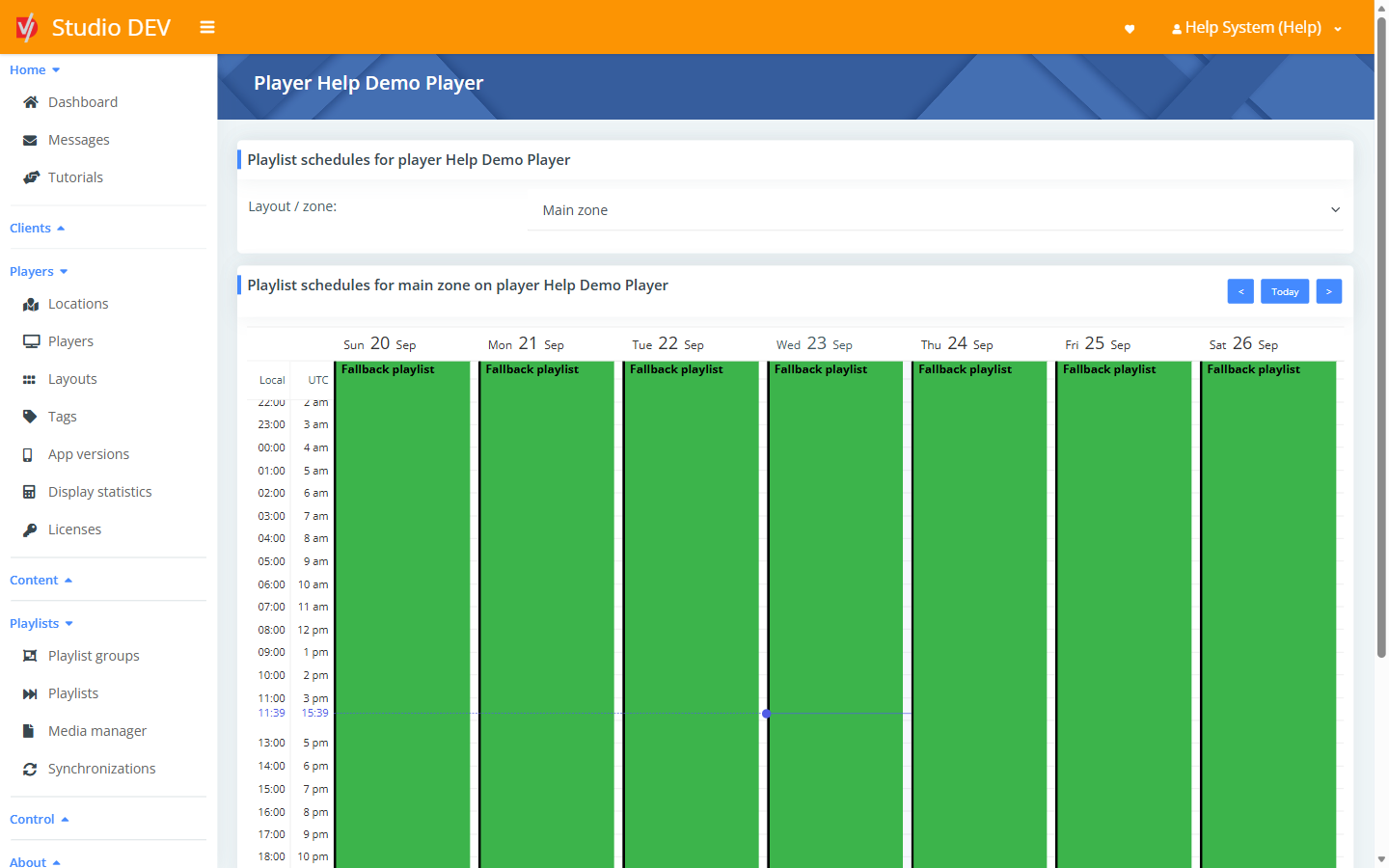
Each row has a Playlist, Time from, Time to, Day (recurrence), Date from, Date to and Priority. See Scheduling for how recurrence and priority work.
Layout schedules
Section titled “Layout schedules”Where: /players/{id}/layoutSchedules
Works like playlist schedules, but each row picks a Layout instead of a playlist.
Screenshot
Section titled “Screenshot”Where: /players/{id}/screenshot
Shows the latest screenshot from each display. Click a screenshot to open it at full resolution.
Player displays
Section titled “Player displays”Where: Admin → Player displays (/players/{id}/displays)
For each display connected to the player you’ll see its Internal ID, Internal name and Resolution. You can set:
| Field | Description |
|---|---|
| Description | A friendly name, for example Left screen. |
| Rotation | 0° (regular), 90° (clockwise), 180° (upside-down) or 270° (counterclockwise). |
Change client
Section titled “Change client”Where: Admin → Change client (/players/{id}/changeClient)
Choose the new Client and click Save.
Permissions needed
Section titled “Permissions needed”- View players to open this page.
- Manage players to edit the player.
- Reboot players for Reload application.
- Admin players for the Admin menu.
- Manage player settings for player settings.