
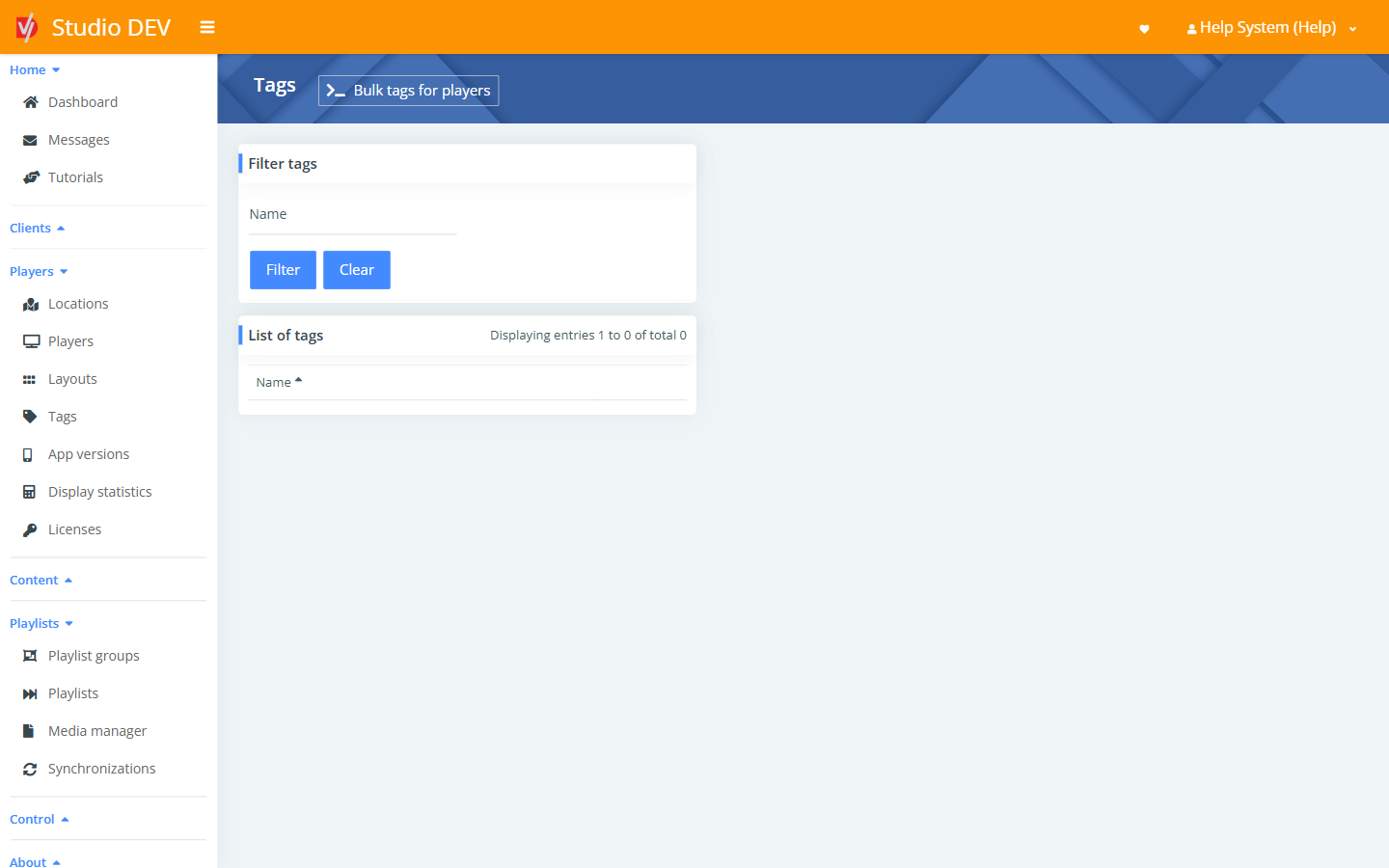
Tags
Where: Players → Tags (/tags)
Tags let one playlist show different content on different screens. You tag media files and then tell each player or location which tags to include or exclude.
How tag matching works
Section titled “How tag matching works”| Setting | Where | Effect |
|---|---|---|
| Include tags | Player or location | Only media carrying at least one of these tags plays. |
| Exclude tags | Player or location | Media carrying any of these tags is skipped. |
| Ignore untagged media | Player | Media with no tags at all is skipped. |
Example: a Promotions playlist contains spanish and english versions of each slide. Set
Include tags = spanish on your Miami store location, and those players show only the Spanish slides.
Find a tag
Section titled “Find a tag”Use the Name filter. The list shows every tag in your client.
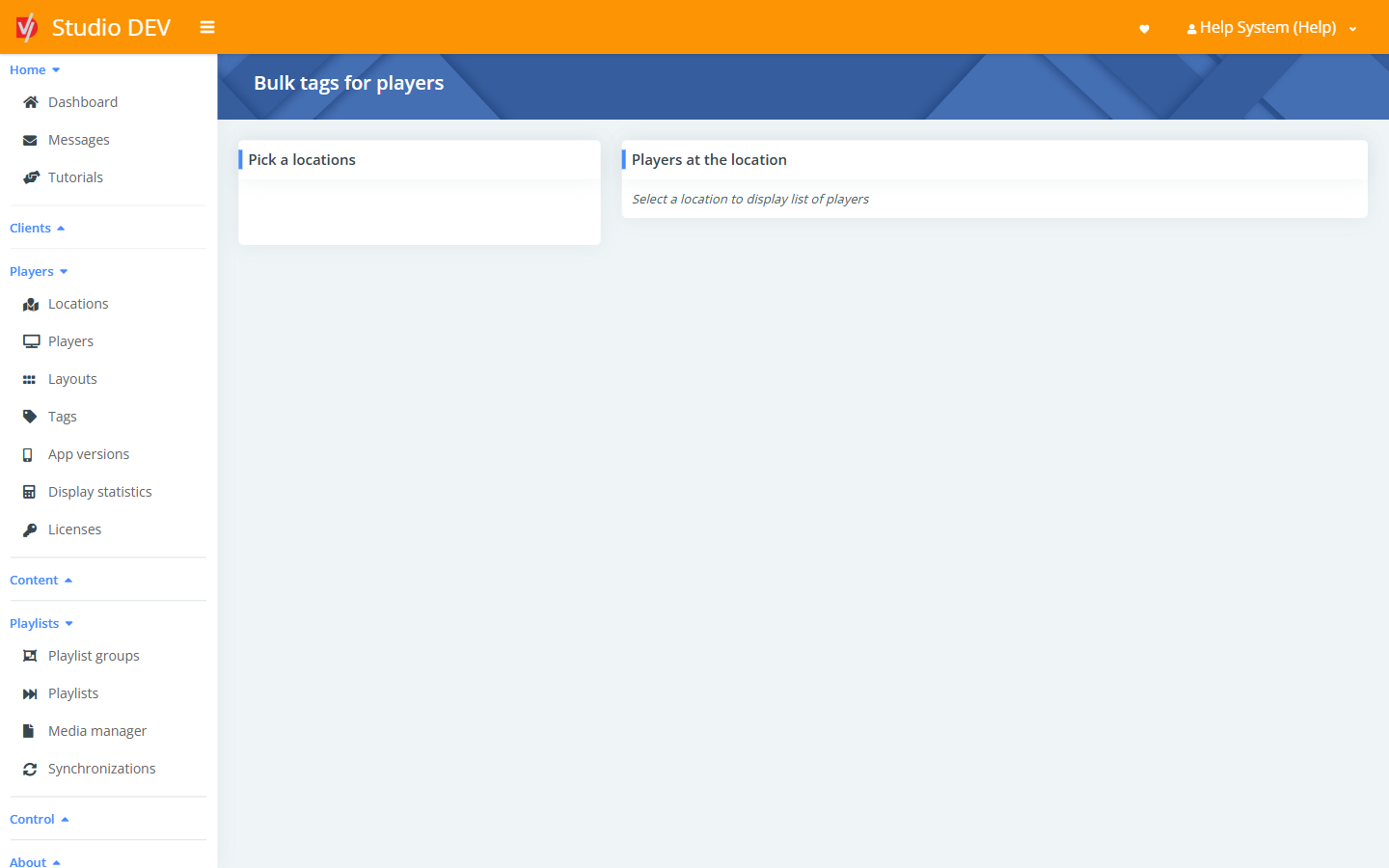
Bulk tags for players
Section titled “Bulk tags for players”Where: Tags → Bulk tags for players (/tags/bulk)
Tag many players at once:
- Under Pick a location, click a location in the tree. Use the search box to find it in a large tree.
- Players at the location lists its players, with a checkbox for each.
- Tick the players you want to tag and click Continue.
- Choose the tags to apply, then save.
Permissions needed
Section titled “Permissions needed”Manage tags.